

Appearance
Create templates on Doppio
Whether you want to create a contract, an invoice, or a social media banner, our HTML template editor can help. We also provide a few starter templates, including some built with Paged.js, to help you get started faster.
Templates help you create documents with a consistent layout without writing the same HTML over and over again.
Write your HTML once and use it as many times as you want.
Here is a short video showing how to create your first template.
What is a Doppio template?
A Doppio template is essentially an HTML file.
html
<!DOCTYPE html>
<html>
  <body>
    <h1>This is a heading</h1>
    <p>This is a paragraph</p>
  </body>
</html>
With templates, you can create not only PDFs but also screenshots.
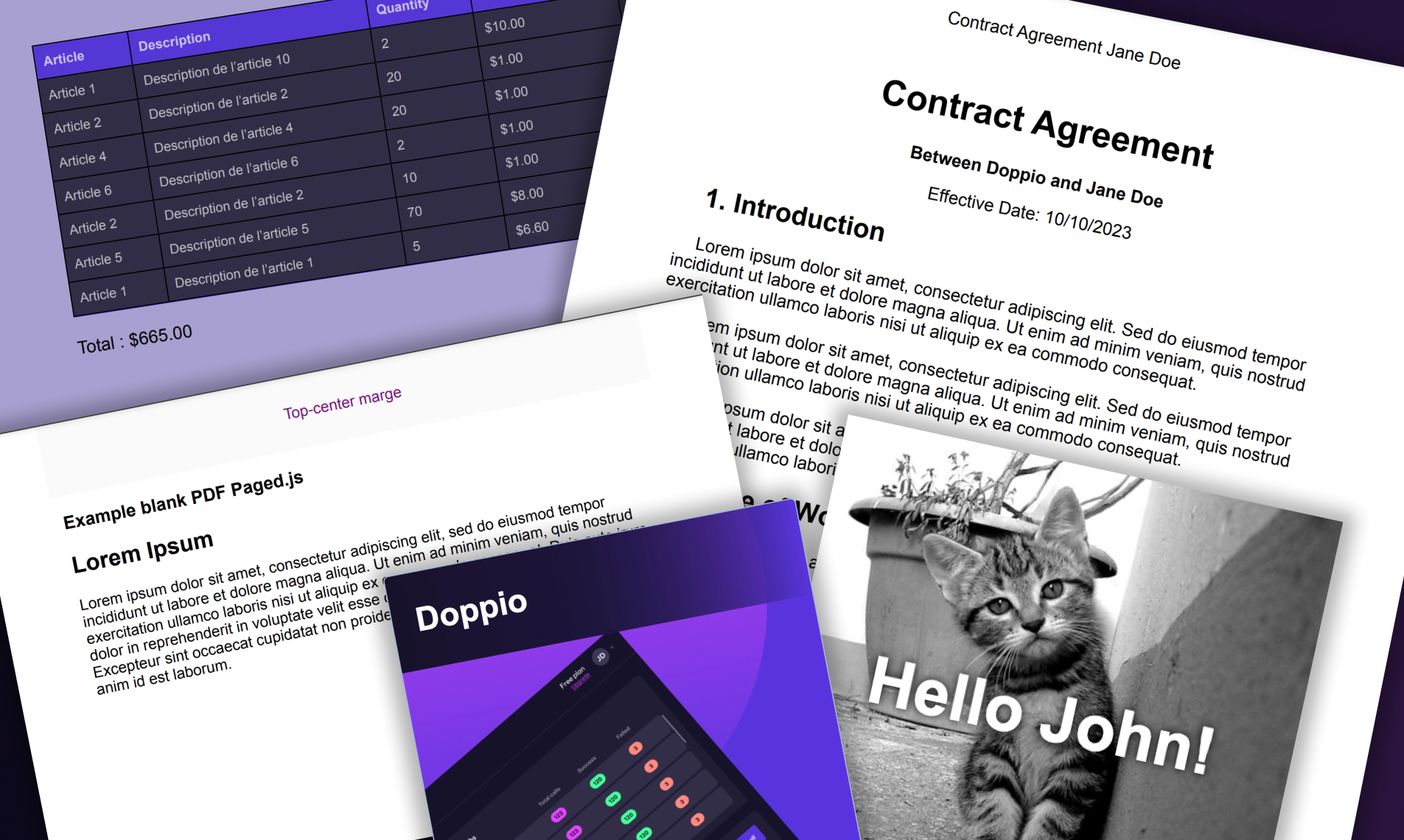
Below are a few examples of our starter templates.
Manage templates
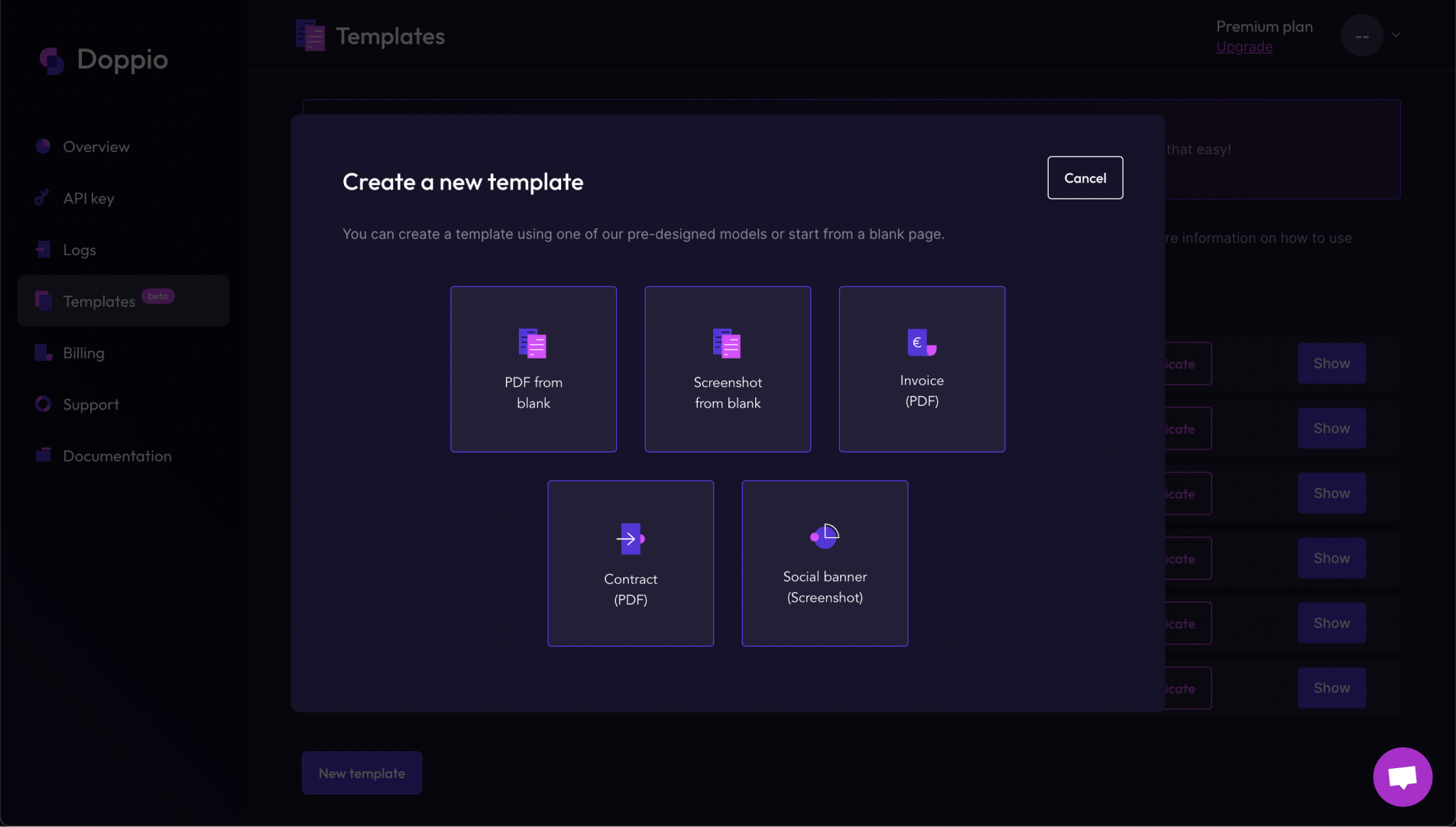
You can access the Templates menu from the logged-in area of the Doppio platform.
From this section of the dashboard, you can create, edit, and delete templates.
We provide five starter templates: three for PDFs and two for screenshots. For PDF templates, we recommend using Paged.js because it makes layout features such as margins and page numbers easier to manage.
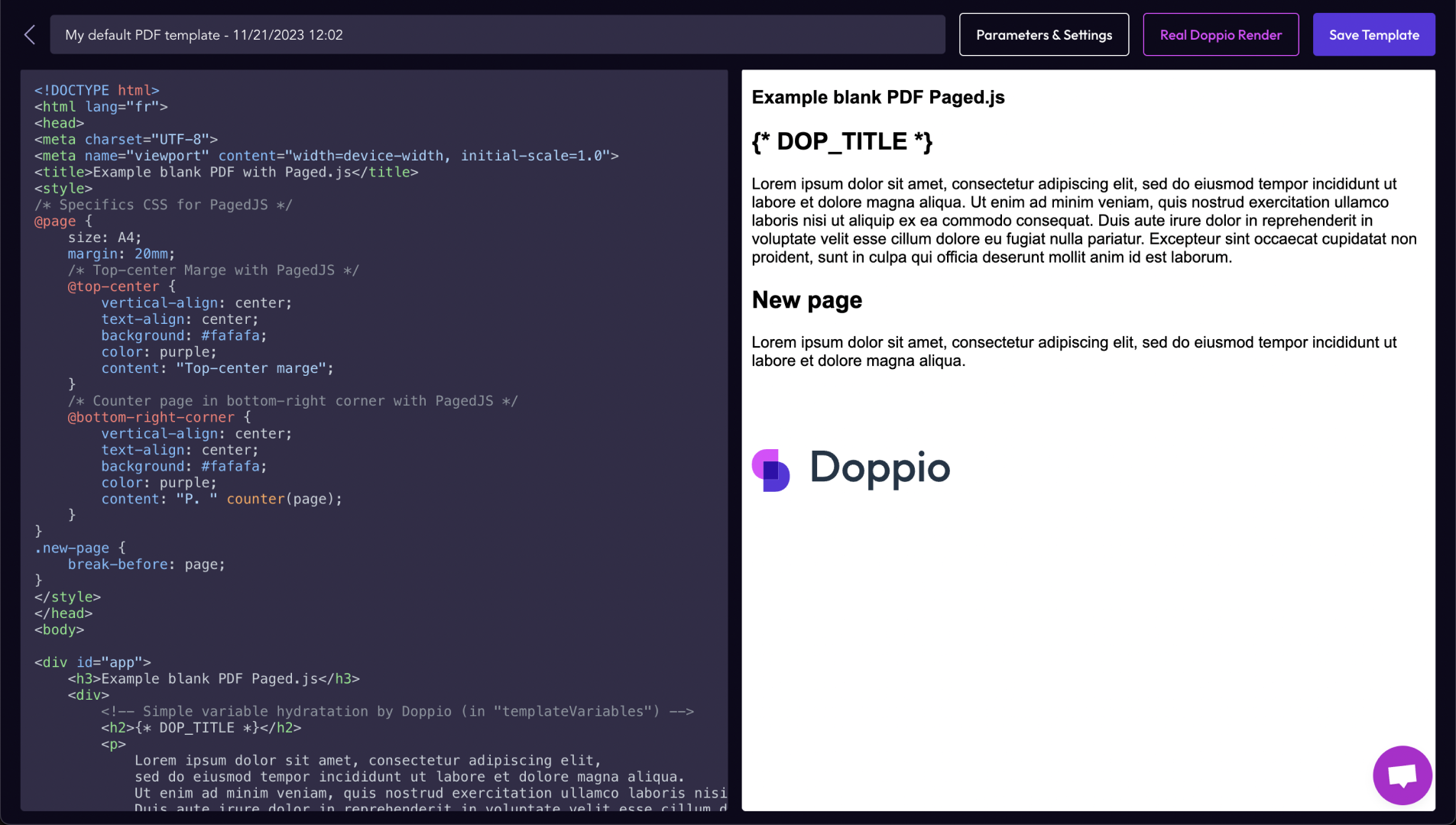
From there, you can use our HTML editor and its basic real-time preview to build your template. You can also click the Real Doppio Render button to see how the template is actually rendered by Doppio.
TIP
The editor includes a real-time preview so you can see your changes immediately. However, JavaScript is not executed in this preview.
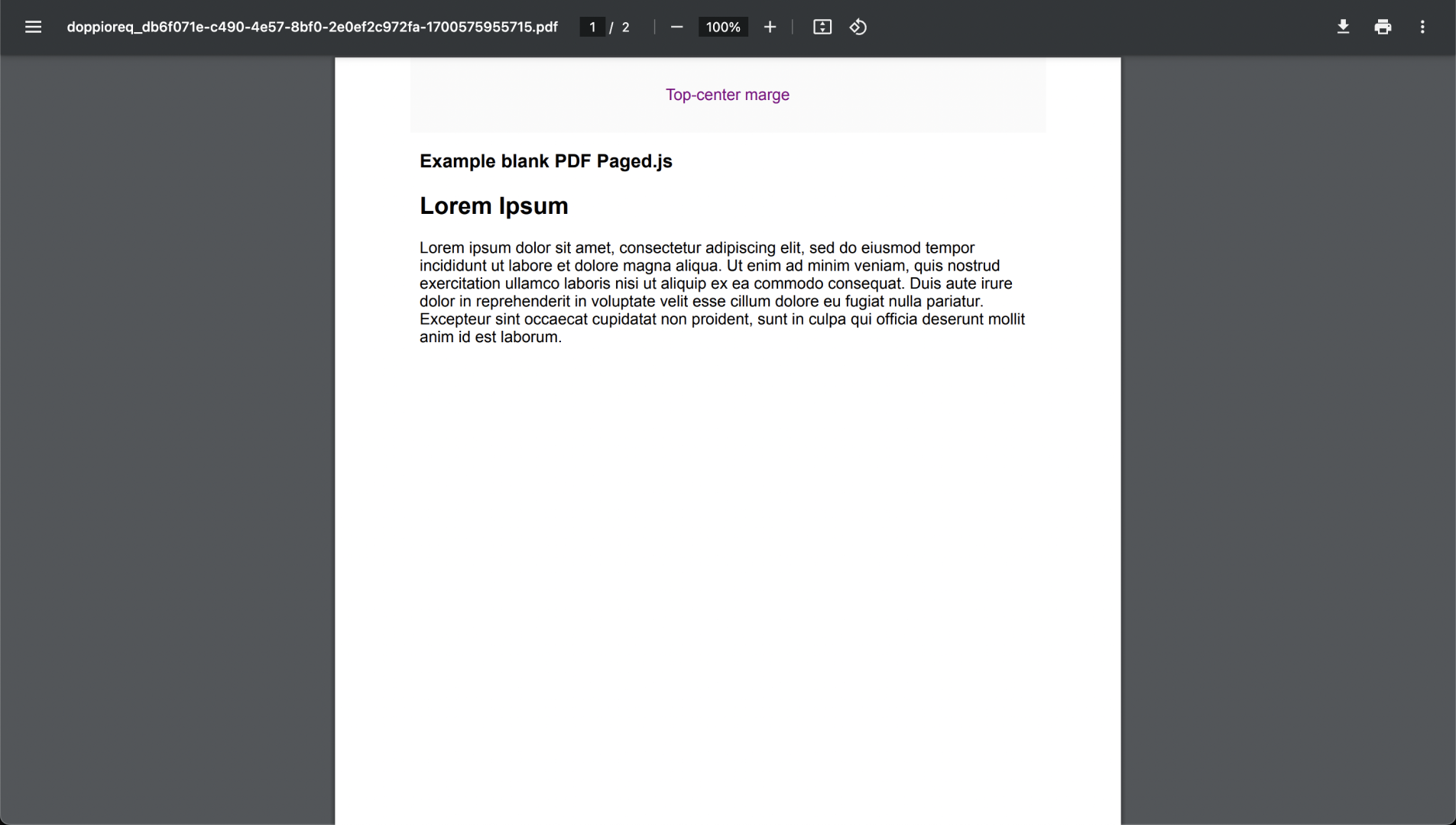
The real Doppio render opens directly in a new browser tab.
Custom variables
Templates can contain custom variables that are replaced at render time. Use the following syntax to create a variable in your template. All variables must start with DOP_.
{* DOP_VARIABLE *}For example, let's add two variables to the template:
html
<!DOCTYPE html>
<html>
  <body>
    <h1>This is a {* DOP_HEADING *}</h1>
    <p>This is a {* DOP_PARAGRAPH *}</p>
  </body>
</html>
You can manage default values for these variables directly in the Parameters & Settings section.
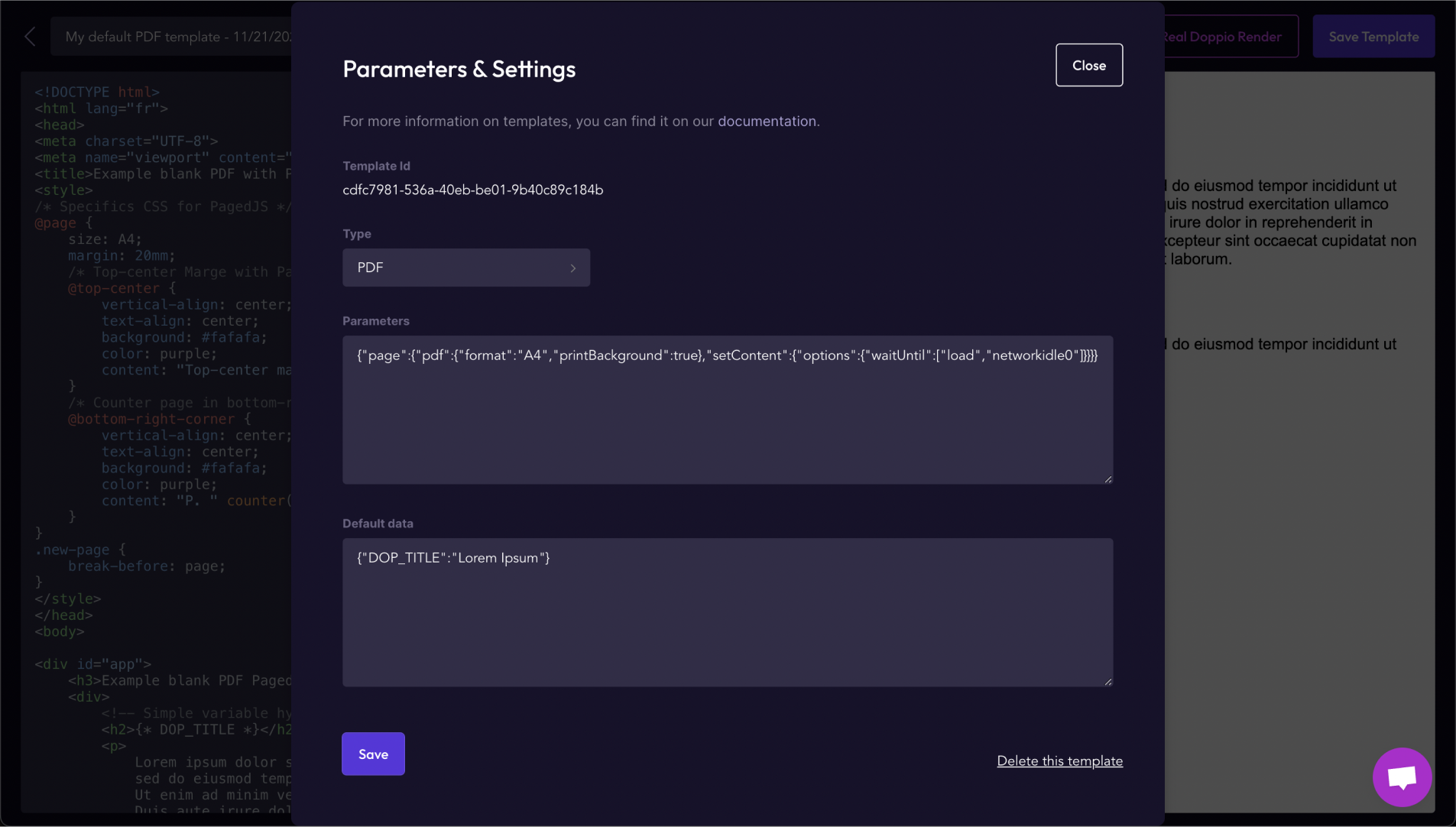
Type and parameters
Templates also let you store custom parameters with the document, so you do not have to provide them again at render time.
Here are some possible parameters for a PDF:
json
  {
    "page": {
      "pdf":{
        "printBackground": true,
        "format": "A4",
        "width": "100px",
        "height": "100px",
        "margin": {
          "top":"50px",
          "left":"50px",
          "right":"50px",
          "bottom":"50px"
        }
      },
      "setContent": {
        "options": {
          "waitUntil": ["networkidle0"]
        }
      }
    }
  }
You can save with your template the parameters expected by any render method. See here for more information.
How to use templates?
You can use templates with any render method: direct, sync, or async. You can find the complete template API reference here.
Specify which template you want to use with the templateId property.
Then provide the custom variable values with the templateData property.
You can still specify parameters at render time. Those values override the ones saved with the template.
js
const options = {
  method: 'POST',
  url: 'https://api.doppio.sh/v1/template/direct',
  headers: {
    'Authorization': 'Bearer <YOUR API KEY>',
    'Content-Type': 'application/json'
  },
  body: JSON.stringify({
    templateId: '<YOUR TEMPLATE ID>',
    templateData: {
      "DOP_HEADING": "Heading Title",
      "DOP_PARAGRAPH": "Paragraph Text"
    }
  })
};

const request = require('request');

request(options, function (error, response) {
  if (error) throw new Error(error);
});
The render method then uses your template to generate the document and replace your custom variables with the values you provided.
You can now use your first Doppio template in your code.
Feel free to send feedback if you have comments about templates. We are still in beta and highly value your input.